 BD Rail Ticket Alarm
Why use it?
Bangladesh Railway tickets go on sale 10 days before the journey, and popular trains often sell out in minutes. Nobody has time to sit refreshing eticket.railway.gov.bd waiting for the release. BD Rail Ticket Alarm watches for you. It rings the moment your train opens and takes you straight to BOOK NOW and the best seats, so you're among the first, not the last.
⏰ Never miss the release time
It works out when your date opens.
🔕 No more endless refreshing
One alarm, right on time.
🪑 No more hunting for seats
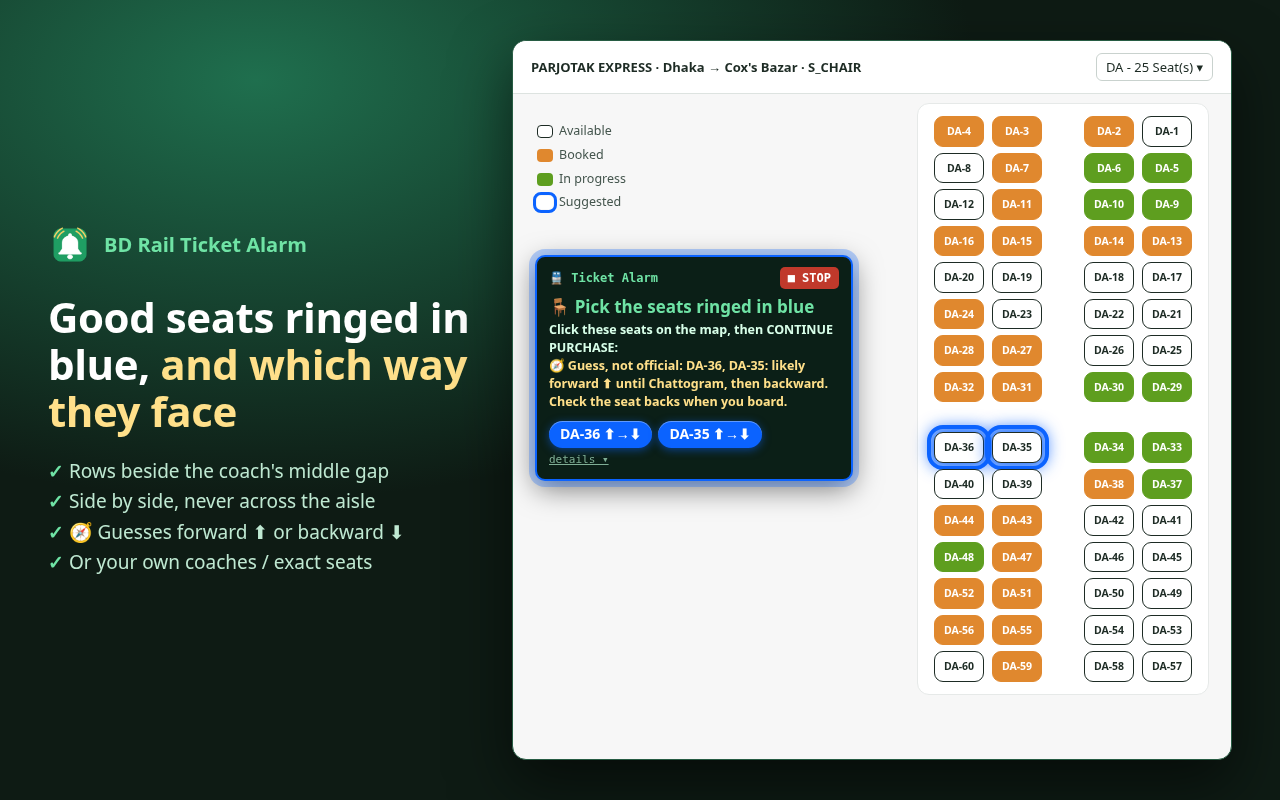
Good seats are ringed in blue for you, with a guess at which way they face.
Free · English & বাংলা · You still choose, book and pay yourself.
What it does
📅 Pick a travel date
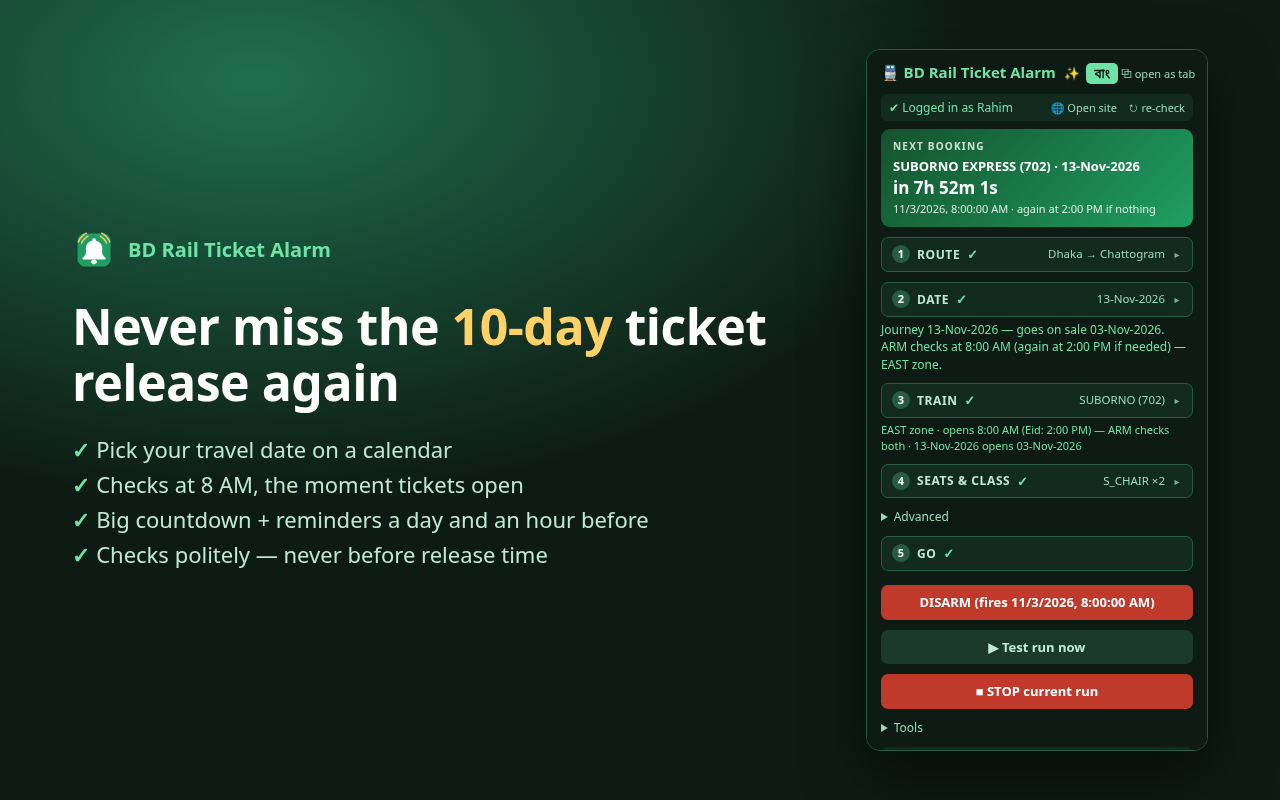
Tap your journey date on a calendar. It works out the opening day (10 days before) and checks at 8 AM, when tickets open. For East trains it checks again at 2 PM, the Eid-time opening.
⏱️ Counts down
A big countdown card, plus reminders a day before and an hour before.
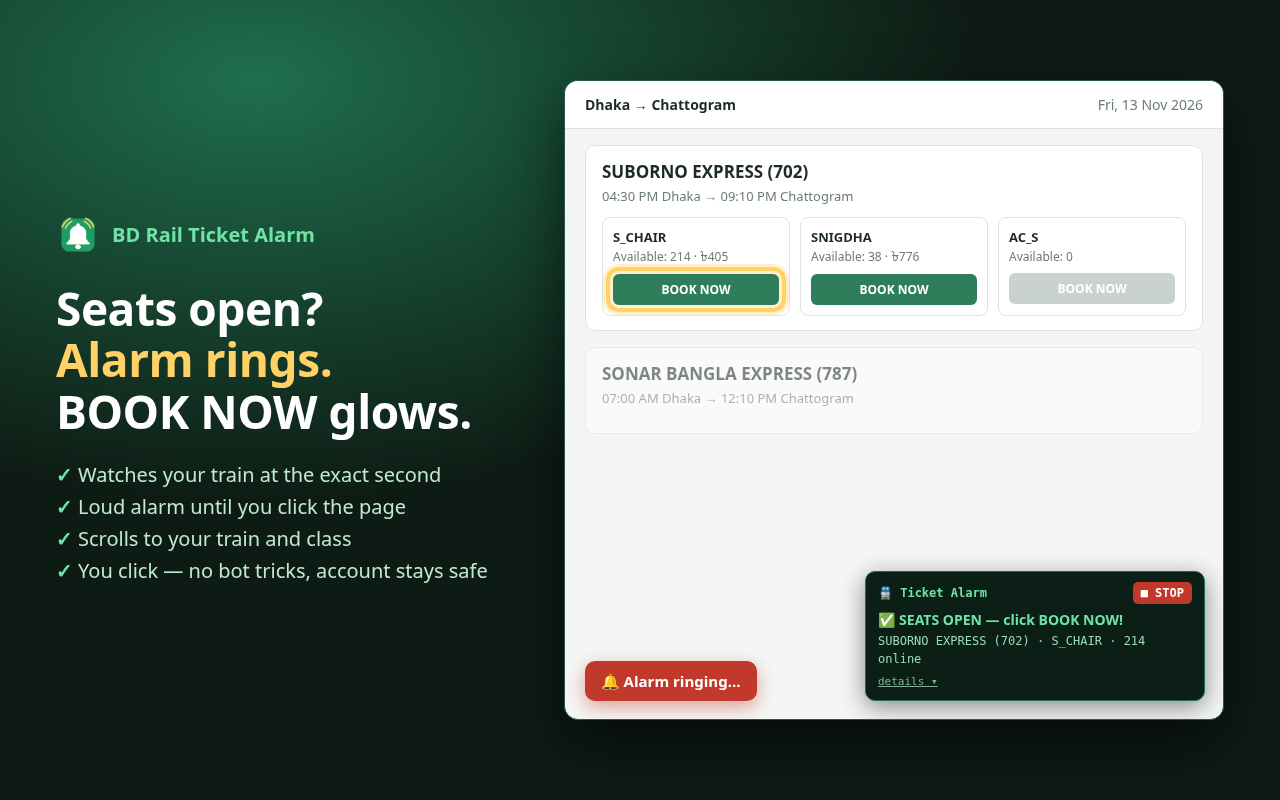
🔔 Rings when seats open
At the release second it checks for your train. The moment your class has online seats, a loud alarm rings.
✨ Lights up BOOK NOW
The page jumps to your train and its BOOK NOW button glows yellow.
🪑 Outlines good seats
In the seat map it rings good seats in pulsing blue — the rows beside the coach's middle gap, side by side (never across the aisle) if you need two or more.
🧭 Which way will it face? New
Each suggested seat gets an arrow: ⬆ forward or ⬇ backward. On Cox's Bazar trips it shows ⬆→⬇ because the train turns around at Chattogram. It's a well-known rule of thumb, not official. How it guesses
🛡️ Gentle on the server
About one check per second, only after release, stops early, slows down when asked. Never touches the bot check.
What you need
- A computer with Brave or Google Chrome (or another Chromium browser like Edge). Phones are not supported.
- An account on eticket.railway.gov.bd, logged in on that browser.
- The browser open and the computer awake at release time — the extension can't wake a sleeping computer.
Install (about 2 minutes)
⬇ Download bd-rail-ticket-alarm.zip
- Unzip it. Right-click the downloaded file → Extract All (Windows) or double-click it (Mac, Linux).
You get a folder called
bd-rail-ticket-alarm. Move it somewhere permanent, likeDocuments— not a folder you clean out. - Open the extensions page and turn on Developer mode. Type
brave://extensionsin the address bar and press Enter (Chrome:chrome://extensions, Edge:edge://extensions). Switch on Developer mode at the top-right.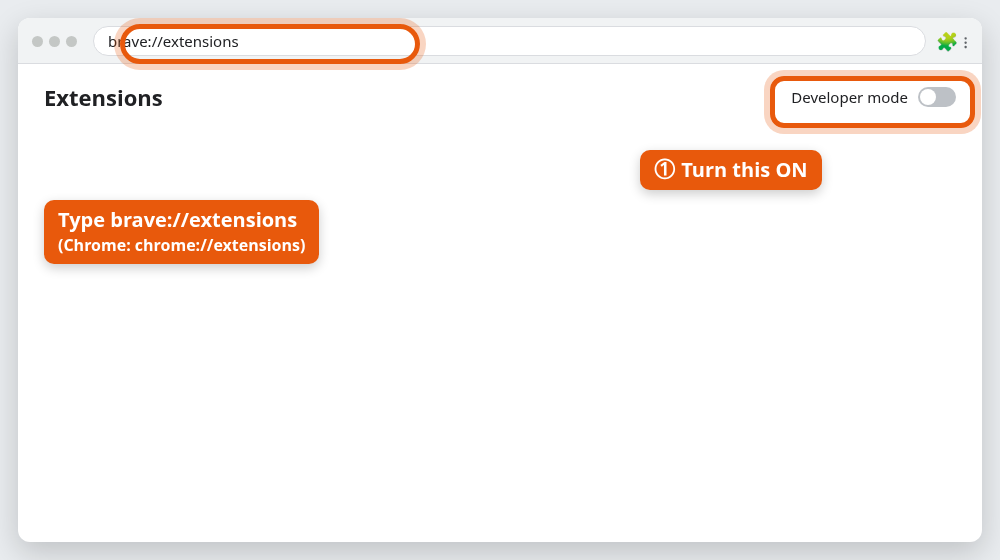
- Load the folder. Press Load unpacked and choose the
bd-rail-ticket-alarmfolder — the folder, not the .zip file.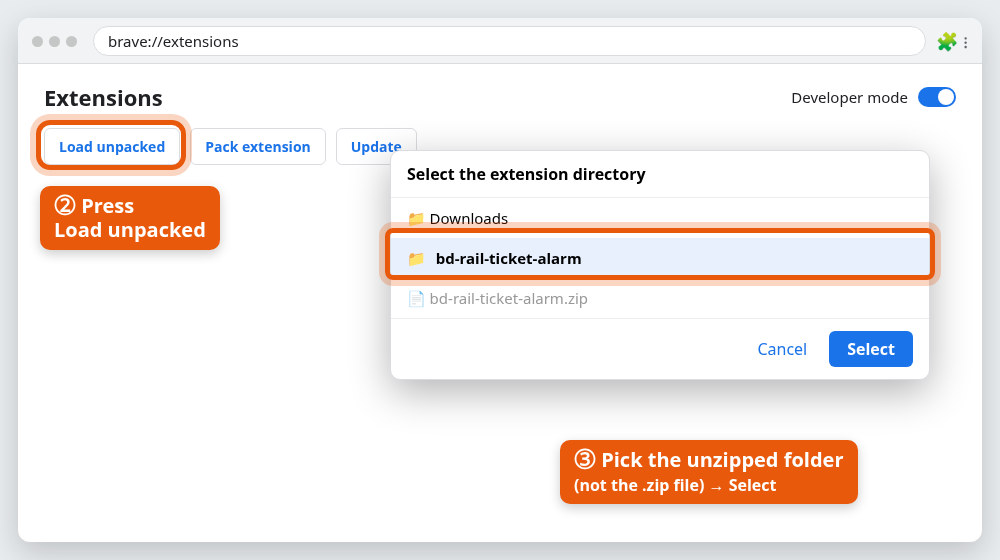
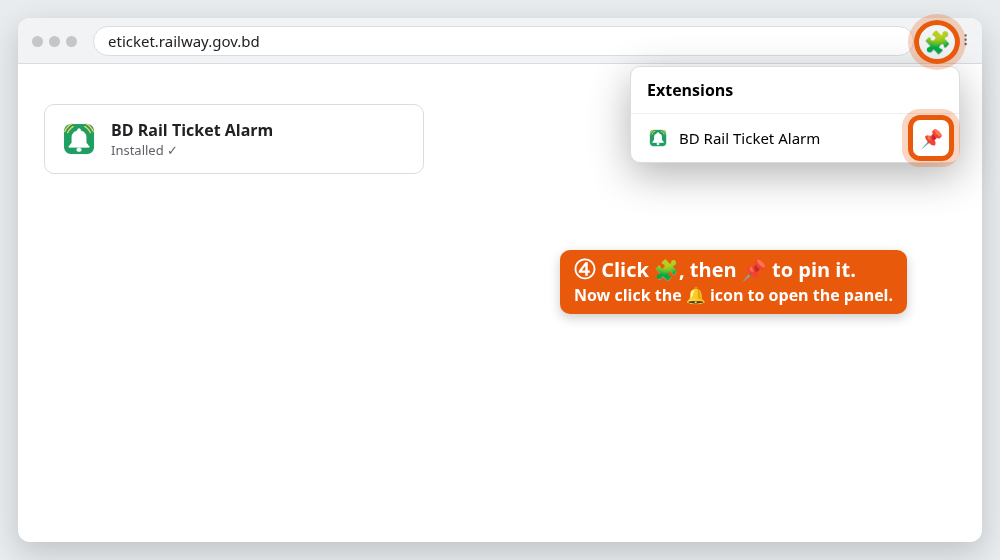
- Pin it. Click the 🧩 puzzle icon next to the address bar, then 📌 next to BD Rail Ticket Alarm. Click the 🔔 icon to open the panel.
Is Developer mode safe?
Yes. It only lets you add an extension from a folder on your computer instead of from the store. It doesn't change any other setting. Chrome may show a “developer mode extensions” notice when it starts — close it with the ✕, don't press Disable. The code you install is the same code you can read on GitHub.
Keep the folder where it is
The browser runs the extension from that folder. If you move, rename or delete it, the extension and its settings disappear.
Updating to a new version
- Download the zip again (same button) and unzip it.
- Copy everything inside the new
bd-rail-ticket-alarmfolder over your old one (same place, replace all). - At
brave://extensions, press ↻ on the extension's card. Your settings and saved trips stay.
Check that ARM is still red after updating — reloading can clear a pending alarm.
How to use
The panel has five numbered steps. A finished step folds to one line with a ✓ — tap it to open it again. The বাং button at the top switches the whole panel to Bangla.
- Log in. Press 🌐 Open site at the top of the panel — it opens eticket.railway.gov.bd for you (or jumps to the tab if it's already open). Log in there, and press I AGREE on the site's disclaimer banner once so it doesn't cover the page at release time. The panel shows a green ✓ when it sees you're logged in. (You always log in yourself — the extension never asks for your password.)
- Route. Type the From and To stations and pick them from the suggestions.
- Date. Tap your travel date. The line underneath says when those tickets go on sale.
- Train. The route's trains load by themselves once both stations are picked (press ⟳ Load trains to refresh). Pick yours — the list shows departure → arrival times, and days a train doesn't run, like “not on Wednesday”. The check times are set for you: 8 AM on the opening day, plus 2 PM as a backup for East trains.
- Seats & class. Choose the class (for example
S_CHAIR), how many seats (1–4), and optionally preferred coaches (THA,TA) or exact seats (THA-21,THA-22). - ARM. Press ARM. The button turns red and a green card counts down. You can close the panel now.
What happens at release time
| When | What happens |
|---|---|
| 1 day before | Reminder notification: “Tickets open tomorrow”. |
| 1 hour before | Reminder notification. Check you're logged in. |
| ~75 seconds before | A eticket.railway.gov.bd tab opens with a small status box at the bottom-right. |
| 8:00 AM on the opening day | It starts checking for your train, about once a second, for up to 5 minutes. |
| 2:00 PM (East trains only) | Only if the 8 AM check found nothing: the same check runs again. If seats were found at 8 AM, this is cancelled. |
| Seats appear | 🔔 Alarm + notification. The page reloads, scrolls to your train, and your class's BOOK NOW glows. |
| You click BOOK NOW | The seat map opens with the best seats ringed in blue. On a wide screen the status box moves beside the seat map, shows those seats as blue buttons (click one to jump to it), and says if another coach is emptier. If the coach is full, it lists the coaches that still show free seats. |
| You finish | Click the outlined seats → CONTINUE PURCHASE → OTP → payment. |
Click anywhere on the page to stop the alarm. Press ■ STOP (in the panel or on the page) to stop everything.
Each check lasts up to 5 minutes (changeable under Advanced). If the 8 AM check finds nothing on an East train, the notification says it will check again at 2 PM — leave the computer on.
How it chooses seats to outline
- Your exact seats, if you typed some and they're free.
- Your preferred coaches, in the order you typed them.
- Otherwise seats likely facing forward ⬆ come first (see which way will my seat face?). Backward seats are suggested only when no forward ones are free in the coach on screen, and the helper box says so. On Cox's Bazar trips, "forward" means forward on the longer Dhaka–Chattogram part.
- Within that, the middle part of the coach — away from doors, toilets and wheels. It goes by where seats sit on the map, not by seat number, so the rows beside the gap in the middle of the map come first.
- For 2 or more tickets, seats next to each other in the same row, never split across the aisle, as close to the middle as possible.
It only outlines. You do the clicking, so you can always pick something else.
🧭 Which way will my seat face? New
Many people want to sit facing the way the train goes. The ticket site doesn't say which seats do, so the extension makes an educated guess, suggests forward-facing seats first, and shows the guess next to every seat it suggests.
The rule it uses
Bangla travel sites agree on a simple rule: about half the seats in a coach face one way, half the other. Which half faces forward depends on whether the train is going to Dhaka or leaving it.
| Your train is… | Usually faces forward ⬆ | Usually faces backward ⬇ |
|---|---|---|
| Leaving Dhaka (e.g. Dhaka → Chattogram, Rajshahi, Khulna) | Seats 31–60 | Seats 1–30 |
| Going to Dhaka (e.g. Chattogram, Rajshahi, Khulna → Dhaka) | Seats 1–30 | Seats 31–60 |
The extension doesn't just cut at seat 30. It splits the coach where the seat map itself has its empty band in the middle, which is where the two halves meet, so it also works for coaches that aren't 60 seats.
Cox's Bazar trips: the seats flip at Chattogram
Trains between Dhaka and Cox's Bazar stop at Chattogram for 20–30 minutes and turn around there. A seat that faces forward from Dhaka to Chattogram faces backward for the rest of the way to Cox's Bazar, and the other way round on the return trip. The longer part of the trip is Dhaka–Chattogram.
How to read the arrows
| On the seat chip | Means |
|---|---|
| DA-36 ⬆ | Likely faces forward for the whole trip |
| DA-25 ⬇ | Likely faces backward for the whole trip |
| DA-36 ⬆→⬇ | Likely forward until Chattogram, then backward |
| DA-25 ⬇→⬆ | Likely backward until Chattogram, then forward |
| DA-36 (no arrow) | Your trip doesn't start or end in Dhaka, so the rule doesn't apply. No guess is shown. |
The helper box also spells it out in words, in English or Bangla.
Staying safe from blocks
If a computer asks the ticket server for data too often, the server answers “You are requesting too frequently” and blocks it for a while. The extension is built to stay well inside normal use:
- Nothing before release time. If your date isn't on sale yet, it refuses to start instead of checking for nothing.
- About one check per second, only for a few minutes, and it stops the moment your seats appear.
- Slows down when told to — waits 2, 4, 8, then 15 seconds.
- Never touches the seat map's bot check (the “are you human?” check). You open the seat map yourself.
- Never logs in for you and never fills in OTP or payment.
Your part: don't run tests again and again on dates that aren't on sale, and use one computer per trip. Want the details? Read How it works.
If something goes wrong
| Problem | What to do |
|---|---|
| “You are requesting too frequently” | Press ■ STOP, close the tab, wait 15–30 minutes. |
| “Can't reach the tab” or no name shown | Press ↻ re-check — the extension now connects to a ticket tab that was open before it was installed or updated. If it still fails, reload that tab. |
| Red ✖ not logged in | Log in at eticket.railway.gov.bd, then press ↻ re-check. If you used train.shohoz.com before: logins don't carry over between the two sites, so log in once on eticket.railway.gov.bd. |
| “Session expired” in the status box | Log in again. The alarm rings so you notice. |
| No trains in the list | Open eticket.railway.gov.bd in a tab, log in, then press ⟳ Load trains. |
| No sound | Tools → 🔔 Test alarm sound. Check the computer volume and that the browser isn't muted. |
| No notifications | Allow notifications for the browser in your computer's settings, and turn off Do Not Disturb. |
| Changed train or date after arming | Press ARM to cancel, then ARM again. |
| BOOK NOW didn't glow | The site may have changed its layout. Scroll to your train yourself and please report it. |
Questions
Does it buy the ticket for me?
No. It finds the moment seats open, alerts you and points at the right buttons. Choosing seats, OTP and payment are always yours.
Why doesn't it pick the seats itself?
The site protects the seat map with a bot check. Getting around it would break the site's rules and put your account at risk, so the extension deliberately leaves that step to you.
Does it know my password?
No. You log in on the website yourself. The extension only uses the login session the website already keeps in your browser, and only to talk to the ticket website. See Privacy.
Does it guarantee a ticket?
No. Popular trains sell out in seconds and thousands of people try at once. It saves you the seconds of noticing and finding your train — the rest depends on you and on luck.
Can it tell which seats face forward?
It guesses, suggests forward-facing seats first, and shows the guess as an arrow next to each suggested seat (⬆ forward, ⬇ backward, ⬆→⬇ when the train turns around at Chattogram). It uses a common rule of thumb, not official data, so check when you board. See Which way will my seat face?
Can I watch several trains or dates?
One trip per ARM. Use Saved trips to switch quickly.
Does it work on a phone?
No — mobile browsers don't run these extensions.