SuperV

Clipboard and emoji for Linux

Win+V and Win+.,
now on Linux.

Looking for the Windows clipboard on Linux? SuperV is a free Win+V alternative for Ubuntu, Linux Mint, Debian, Fedora, Arch and more. Press Super+V to see the last 25 things you copied, then click one to paste it. The Win+. emoji panel, Win+Shift+S screenshots and more Windows shortcuts are one switch away when you want them. It's free, open source and tiny: one C program, under 6 MB of memory, and nothing you haven't turned on is loaded.

Version 2.1.0 · Ubuntu · Mint · Debian · Fedora · Arch · openSUSE · Wayland & X11 · MIT license

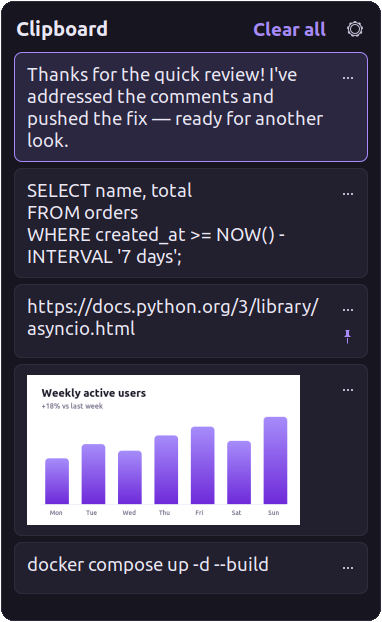
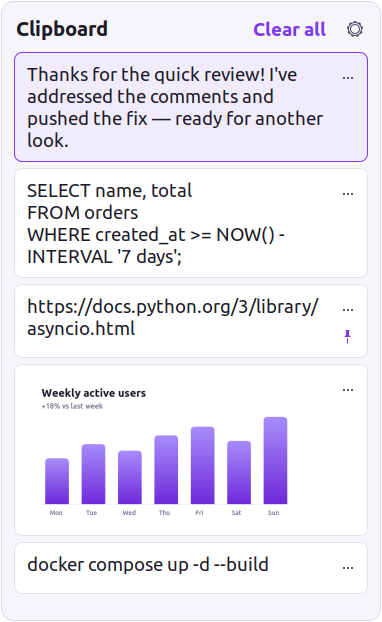
SuperV clipboard history panel in dark mode showing a message, an SQL query, a pinned link, a chart image and a docker command SuperV clipboard history panel in light mode

Features

Everything Win+V does on Windows, on Linux

If you've used clipboard history on Windows 10 or 11, you already know how to use SuperV. It keeps the same habits and adds a few extras.

  • Text and image history

    Keeps your last 25 copies, newest first, including screenshots and copied images.

  • Click to paste

    Pick an item and it's pasted into the document, browser or terminal you were using.

  • Shows what you already pasted

    Pasting ten things in a row? Each one you've pasted gets a ✓, the latest says Last pasted, and the panel opens on the next. The list keeps its order.

  • Pin what matters

    Pinned items survive reboots and Clear all. Everything else clears on restart, as on Windows.

  • Any shortcut you like

    Super+V by default. Open ⚙ → Shortcut and press any combo; conflicting shortcuts are moved out of the way for you.

  • System, light or dark

    Follows your desktop theme, or pick light or dark yourself. Make the text bigger or smaller with A− / A+.

  • Move and resize

    Drag the header to put the panel anywhere and drag an edge to resize it. SuperV remembers both.

  • Private by default

    Nothing leaves your computer. Passwords copied from password managers are never recorded.

  • Feather-light

    Plain C on the GTK your desktop already runs. No Electron, no runtime, no polling.

  • Wayland and X11

    GNOME, Cinnamon, MATE and Xfce, on Wayland and X11. KDE Plasma support is experimental.

New in 2.0 · Emoji panel

Win+. emoji, kaomoji and symbols

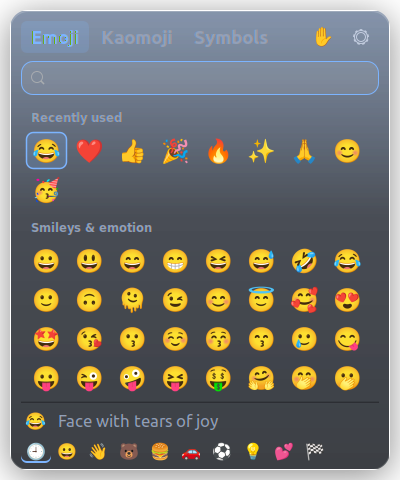
Press Super+. in any app and start typing: "heart", "party", "shrug", "euro". Pick one and it's typed where you were writing, then your clipboard is put back. SuperDot, the emoji panel, is now part of SuperV.

Super + .
Open / close the emoji panel
type
Search emoji, kaomoji and symbols at once
Enter or click
Type it; the panel stays for the next one
Shift + Enter
Type it and close
Tab
Emoji → Kaomoji → Symbols
Super + V
Switch to the clipboard history

It's off until you want it: click ☺ in the clipboard panel, or Super+V → ⚙ → turn on Emoji panel. Nothing is downloaded; every emoji is already inside. While it's off it isn't loaded at all, and Super+. stays with your desktop.
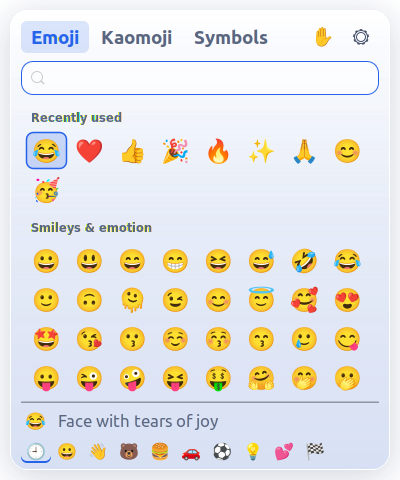
SuperV emoji panel in dark mode: Emoji, Kaomoji and Symbols tabs, a search box, recently used emoji and the smileys SuperV emoji panel in light mode

New in 2.1 · More Windows shortcuts

Screenshots, plain-text paste, colour picker, text from the screen

The PowerToys shortcuts people miss most, built in. Each one is off until you turn on its switch in the settings (Super+V, then ⚙), and nothing runs until you press it.

  • Screenshots you can draw on

    Super+Shift+S: select an area, add arrows, boxes, text, highlights, numbers or blur, then copy, save or pin it on top of everything. Flameshot-style, without the extra app.

  • Paste as plain text

    Ctrl+Super+Alt+V pastes what you copied without fonts, colours, links or images.

  • Colour picker

    Super+Shift+C, then click anywhere: the colour is copied as HEX, with RGB and HSL one click away.

  • Copy text from the screen

    Super+Shift+T, then drag over any text, even in a picture or video: it's copied. Uses Tesseract, on your computer only.

Keyboard shortcuts

Your Windows habits carry over

Every key does what you expect from Win+V.

Super + V
Open / close clipboard history
↑ ↓
Move between items
Enter or click
Paste into your app
Delete
Remove the item
Esc
Close the panel
Super + Shift + S
Screenshot → history
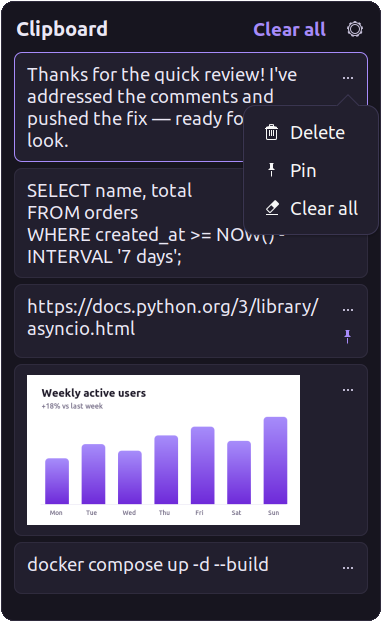
SuperV item menu with Delete, Pin and Clear all options

Side by side

Windows clipboard history vs SuperV

Everything Windows clipboard history does, feature for feature, plus a few things it can't.

Feature comparison between Windows clipboard history (Win+V) and SuperV for Linux
FeatureWindowsSuperV
History panel on Win/Super + V✓✓
Text and images✓✓
Pick an item to paste it into your app✓✓
Pin items; pinned survive restarts✓✓
History clears on restart (except pinned)✓✓
⋯ menu: Delete, Pin, Clear all✓✓
Turn history off / on✓✓
Clipboard survives closing the source app✓✓
Ignores password-manager copies✓✓
Choose your own shortcut✗✓
Adjustable text size in the panel✗✓
Free and open source✗✓

Install

How to install SuperV on Linux

Pick your Linux family. Every package is about 130 KB and sets up click-to-paste for you. Need an older version? They're all on the versions page. After installing, open SuperV once from your app menu: that sets up Super+V, and SuperV starts by itself at every login from then on. Emoji, screenshots and the other shortcuts are switches in its settings.

Recommended · gets updates

Ubuntu and Linux Mint (PPA)

  1. Add the SuperV PPA and install. Works on Ubuntu 22.04, 24.04, 26.04 and 26.10, Mint 21 and 22.
  2. Open SuperV once from your app menu.
  3. New versions arrive with your normal system updates (Software Updater, Update Manager).
$ sudo add-apt-repository ppa:saikatnjm/superv
$ sudo apt install superv
No terminal

Ubuntu, Mint, Debian, Pop!_OS, Zorin

  1. Download superv_amd64.deb.
  2. Double-click it and choose Install. Enter your password once.
  3. Open SuperV once. Ubuntu: press Super, type SuperV, press Enter. Mint: open the Menu and search for SuperV.
Download .deb
No terminal

Fedora, openSUSE

  1. Download superv.x86_64.rpm.
  2. Double-click it to install it with Software, or run sudo dnf install ./superv.x86_64.rpm (openSUSE: sudo zypper install ./superv.x86_64.rpm).
  3. Open SuperV once from your app menu.
Download .rpm
Arch, Manjaro, EndeavourOS

Build the package

  1. Build and install with the included PKGBUILD, or download the ready-built package and run sudo pacman -U superv-x86_64.pkg.tar.zst.
  2. Open SuperV once from your app menu.
$ git clone https://github.com/saikatnjm/superv.git
$ cd superv/packaging/arch
$ makepkg -si
Any other Linux

Install from source

  1. The installer sets everything up in your home folder and fetches build tools with apt, dnf, pacman or zypper.
  2. Optional: pass your own shortcut with --hotkey.
$ git clone https://github.com/saikatnjm/superv.git
$ cd superv
$ ./install.sh
# or with your own shortcut:
$ ./install.sh --hotkey "<Ctrl><Alt>v"

Updating: with the PPA, updates come with your normal system updates. Otherwise, install the new package. SuperV notices it was updated and restarts itself into the new version as soon as the panel is closed, keeping what's on your clipboard.

FAQ

Frequently asked questions

Something not working? Run superv --doctor to check the setup on your machine.

How do I get clipboard history like Win+V on Ubuntu?

Install SuperV by double-clicking its .deb file, then open it once: press Super, type SuperV and press Enter.

From then on, press Super+V: a panel opens with your last 25 copied items. Click one to paste it into the app you're using.

Is there a Win+V clipboard for Linux Mint?

Yes. SuperV works on Linux Mint 21 and newer: Cinnamon, MATE and Xfce.

After installing, open the Menu, search for SuperV and open it once. That sets up Super+V for you.

Does SuperV work on Fedora, Arch or KDE Plasma?

Yes:

  • Fedora and openSUSE: install the .rpm package.
  • Arch, Manjaro and EndeavourOS: use the included PKGBUILD.
  • Any other distro: run install.sh.

GNOME, Cinnamon, MATE and Xfce are fully supported. KDE Plasma support is experimental: SuperV sets Meta+V and turns off KDE's own Meta+V clipboard popup for you. On Sway, Hyprland, i3 and COSMIC, add the shortcut line SuperV prints.

Does SuperV work on Wayland?

Yes. Ubuntu's and Fedora's default GNOME Wayland sessions are fully supported, including copying from and pasting into native Wayland apps.

Can I use a different shortcut than Super+V?

Yes. Open the panel, click ⚙ → Shortcut and press a combination with Super or Ctrl+Alt, such as Ctrl+Alt+V.

A green ✓ confirms it's saved. If a combination can't be used, like Ctrl+V which apps need for pasting, SuperV tells you why.

How much memory does SuperV use?

About 5.5 MB as installed, because only the clipboard is on. With the emoji panel on it's about 7 MB, and 11 MB once you've opened it. SuperV is one small C program, and it uses no CPU until the clipboard changes or you press a shortcut. A feature that is off isn't loaded at all.

How do I copy text from an image or the screen on Linux?

Turn on Copy text from screen in SuperV's settings, then press Super+Shift+T and drag over the text: SuperV reads it and copies it, like Win+Shift+T on Windows. It needs Tesseract once: sudo apt install tesseract-ocr (Fedora: sudo dnf install tesseract). The text never leaves your computer.

Is there a colour picker shortcut on Linux?

Yes. Turn on Colour picker in SuperV's settings, then press Super+Shift+C and click anywhere on screen. The colour is copied as HEX, and a small card offers RGB and HSL.

Is there a Win+. emoji panel for Linux?

Yes, since SuperV 2.0. Turn it on once (click ☺ in the clipboard panel, or the Emoji panel switch in ⚙), then press Super+. in any app, type to search emoji, kaomoji and symbols, and the one you pick is typed where you were writing. Your clipboard is put back afterwards, and the emoji isn't added to your clipboard history.

Used SuperDot? It's now part of SuperV: installing SuperV 2 replaces it and keeps your settings.

Where is my clipboard history stored?

Only on your computer, in ~/.local/share/superv/, readable by you alone.

SuperV never connects to the internet: no telemetry, no analytics, no update checks. Unpinned items are removed on reboot, and passwords copied from password managers are never saved.

How do I update SuperV?

If you installed from the PPA (ppa:saikatnjm/superv), updates arrive with your normal system updates. Otherwise, install the new package the same way you installed the first one. SuperV notices it was updated and restarts itself into the new version as soon as the panel is closed, keeping what's on your clipboard.

How do I uninstall SuperV?
  • Ubuntu: Ubuntu Software → Installed → SuperV → Uninstall
  • Linux Mint: right-click SuperV in the Menu → Uninstall
  • Fedora: Software → Installed → SuperV → Uninstall
  • Terminal: sudo apt remove superv, sudo dnf remove superv, sudo zypper remove superv or sudo pacman -R superv

Your desktop's shortcuts are restored. Your history and settings are kept in case you reinstall; to delete them too, run rm -r ~/.local/share/superv ~/.config/superv.

Like SuperV?

If it saves you a few seconds every day, a ⭐ on GitHub helps other Linux users find it.

⭐ Star on GitHub